How to Turn Your Photo into a Doodle Quickly Using ChatGPT

Get our stories first in Google Search
Doodles are more than just casual sketches. They’re fun, relatable, and full of personality. A doodle has this playful, imperfect charm that a polished photo just can’t match. There’s something about rough lines, wobbly outlines, and uneven strokes that makes people smile.
Doodles work everywhere. Social media loves them. Business presentations use them to feel more human. Blogs use them to break up text and keep readers interested. Even personal projects benefit from that hand-drawn touch.
The only problem is that making doodles takes time and skill. Not everyone can draw well. And if you can, you’re spending hours on something that should be quick.
That’s where things have changed.
ChatGPT Just Made This Way Easier
ChatGPT rolled out its new image model, and it’s gotten much better at creating realistic, detailed images. But here’s what caught my attention: they also added pre-made styles. One of them is “Doodle.”
This changes everything. You don’t need to write lengthy prompts or fiddle with settings. You don’t need to understand complex art terms. You just upload a photo and pick a style. That’s it.
I tested this myself, and the results are genuinely impressive. The AI isn’t just slapping a filter on your photo. It’s actually creating a new image that looks like someone sat down and drew your photo by hand.
Few weeks before, if you wanted to convert a photo into a cartoon or doodle style, you’d need to craft a detailed prompt. You’d spend twenty minutes writing instructions about line weight, color, proportions, and mood. Even then, you’d get mixed results.
Now, ChatGPT gives you templates. Click a style, upload a photo, and wait. The entire process takes less than a minute.
I found this shift significant because it puts this kind of creative work in reach for regular people, not just those who know how to write effective prompts.
How to Actually Do It
Here’s the step-by-step process I follow:
- First, go to chatgpt.com or open the ChatGPT app. Look for the menu icon and select “Images.” You’ll see a section called “Try a style on an image.” This is where the templates live.
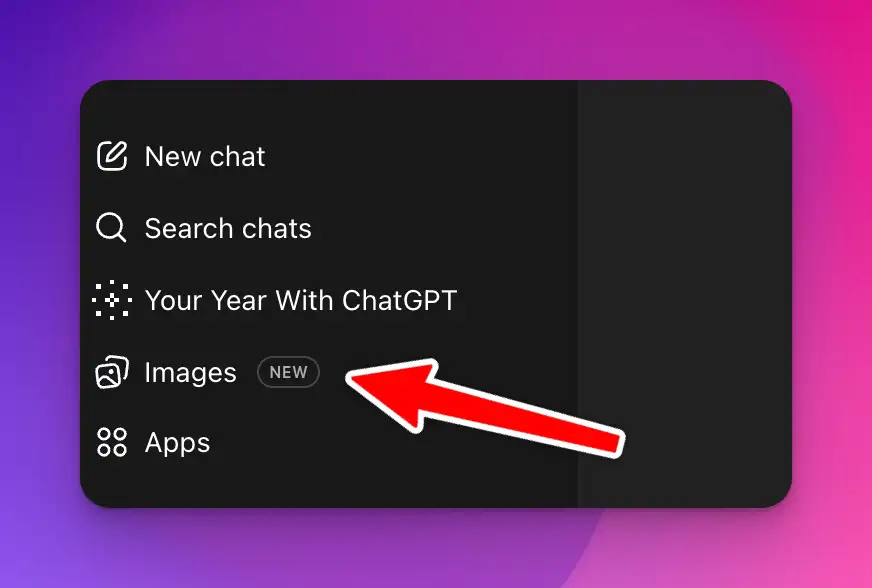
- Scroll through the options by clicking the arrow. You’ll see different styles available. Keep scrolling until you find “Doodle.” Click on it.
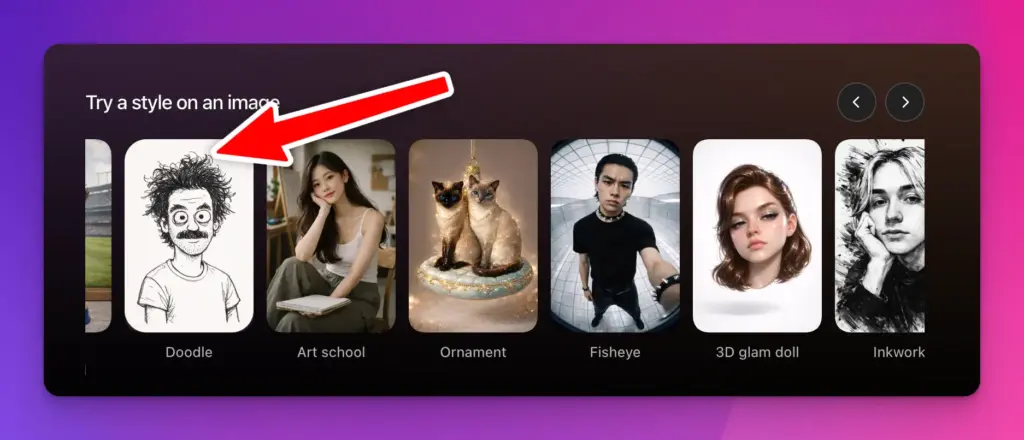
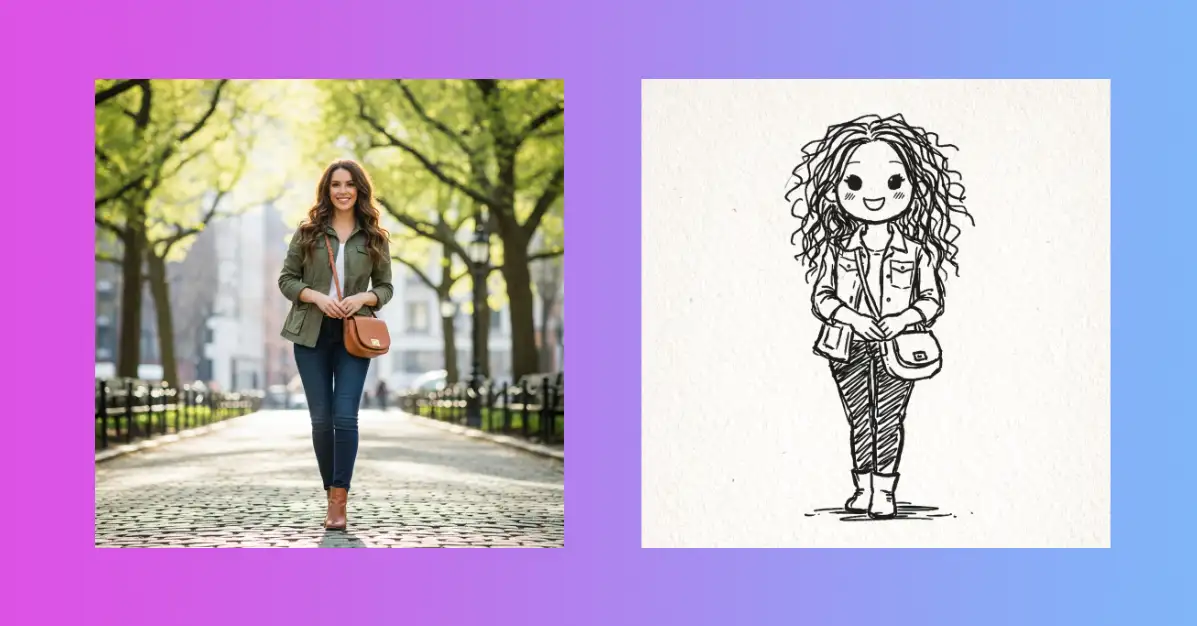
- The system will ask you to upload a photo. Click on “Choose a new photo” and pick an image from your device. Any photo works: a portrait, a selfie, a picture of someone in nature, whatever you have. For example I uploaded the following photo.

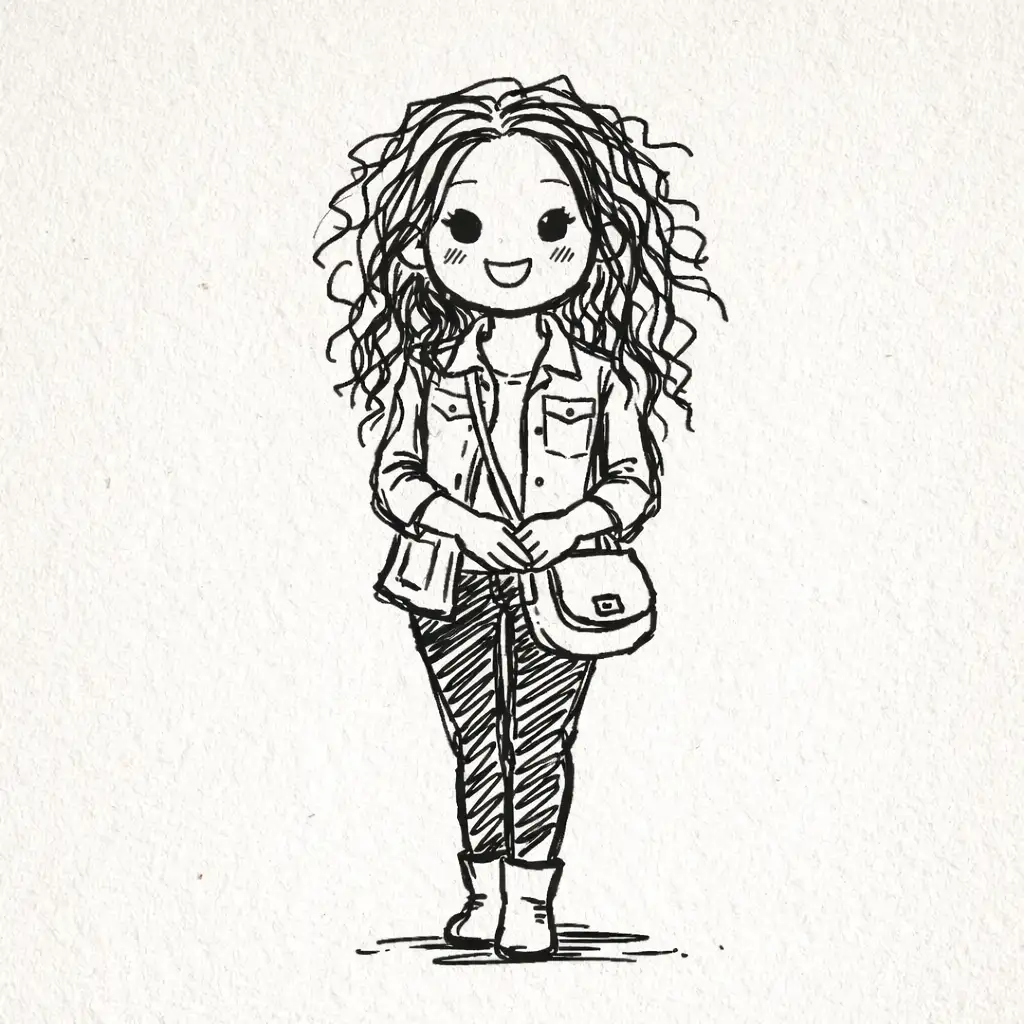
- Now just wait. The AI generates your doodle in a few seconds. That’s the whole thing. Following was the result for the given example.
What ChatGPT Is Actually Doing
Even though you’re not writing a prompt, ChatGPT is still using one behind the scenes. When I looked at the prompt for the doodle style, it said something like this:
Transform the subject into a naive, childlike doodle with rough, uneven black linework and exaggerated, awkward proportions. Draw with a loose, scribbly style with wobbly outlines, unsteady strokes, and simple shapes that look hand-drawn without precision. Hair can be represented with frantic curls or straight jagged lines, and the expression should feel endearingly cute and adorable. Keep the background plain or lightly textured like paper. The overall aesthetic should feel like a spontaneous kid’s sketch or amateur doodle, charmingly imperfect, unrefined, and playfully weird, while still recognizable as the original subject. Don’t make it look like a crayon drawing, use line art style lines only.
Let me break down what this actually means.
The prompt is asking the AI to make something look intentionally imperfect. “Naive, childlike” means the style should feel simple and unpolished, like a kid drew it. “Rough, uneven black linework” means the lines aren’t smooth or perfect; they wobble and have character.
“Exaggerated, awkward proportions” tells the AI to stretch and distort things slightly. This is what makes doodles fun and expressive. Your face might be a little rounder, your features a bit bigger or smaller than they really are.
The “loose, scribbly style” is key. The AI is trying to mimic how humans actually sketch. We don’t draw with ruler-straight lines. We use multiple strokes, we scribble, we adjust as we go.
“Endearingly cute and adorable” ensures the result feels warm and friendly, not weird or off-putting. Even when things are exaggerated, the overall feeling should be charming.
The plain background instruction keeps focus on you, the main subject. A busy background would distract.
The last part is important: the AI should keep things recognizable. You should still look like yourself, just in doodle form. And it should be pure line art, not colored in or textured like crayon.
Where You Can Actually Use These Doodles
I’ve found multiple uses for doodle versions of photos, and the list keeps growing.
Social media is the obvious place. A doodle version of your profile picture stands out. People notice it. It feels friendly and approachable. LinkedIn profiles, Instagram bios, Twitter headers, all of these benefit from that hand-drawn feel.
Blogs and articles work well with doodle illustrations. If you’re writing about yourself or your team, adding doodle portraits breaks up text and adds personality. Readers connect better with images that feel human.
Email marketing is another spot. A doodle illustration in your newsletter grabs attention better than a standard photo. It’s memorable and different from what competitors are doing.
Presentations and pitch decks look better with doodle versions of people. Whether you’re presenting to investors or speaking at an event, doodle illustrations of team members or clients feel more engaging and less formal.
Personal projects like wall art, mugs, or t-shirts work great too. A doodle of yourself or a friend makes for thoughtful gifts. Print shops can transfer these images onto merchandise easily.
Website headers, team pages, and company materials all benefit from this style. It softens the corporate feel and makes businesses seem more personable.
Even just having fun is valid. Sometimes you just want to see what a silly doodle version of yourself looks like.
ChatGPT’s doodle style feature saves time and skill. You don’t need to be an artist. You don’t need to write complicated prompts. You upload a photo, pick a style, and get a genuinely good doodle in seconds.
This is one of those tools that feels almost too simple to be useful, but it actually is. Give it a try and see what you think.